Transforming Perspective
-
Menu -> Image -> Transforming Perspective
-
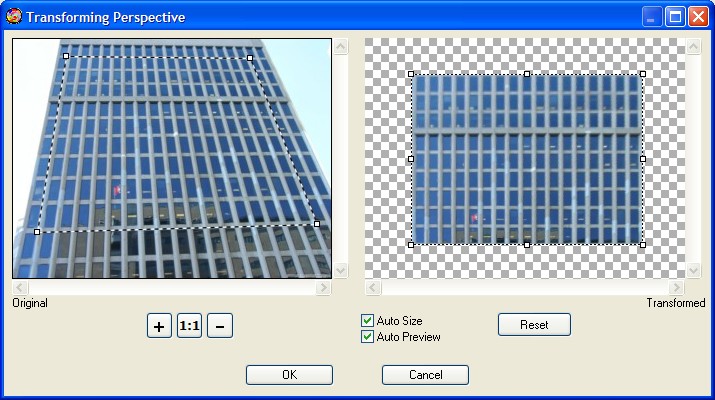
The Transforming Perspective tool allows you to transform the
perspective in an image. This is very useful when working with
images that contain keystone distortion. Keystone distortion occurs
when an object is photographed from an angle rather than from a
straight-on view. For example, if you take a picture of a tall
building from ground level, the edges of the building appear closer
to each other at the top than they do at the bottom. You can also
use this tool to distort the image.
To modify the
perspective, you can adjust the four points of the crop bounding box
independently by dragging the handles along the corners to create
your desired crop shape. This defines the perspective in the image,
so it is important to precisely match the object's edges. -
-
Auto Size
-
If you want to determine the size of the transformed image
automatically, select the check box "Auto Size".
-
-
Auto Preview
-
The Auto Preview check box makes all changes to the transformations
dynamically so that the new transformation settings can be viewed
straight away.
-
-
Reset
-
This button allows to you to remove all transformations.
-
-
Zoom In, Zoom Out and Scale 1:1

-
Click Zoom In button to increase the zoom factor.
-
Click Zoom Out button to decrease the zoom factor.
-
Click "Scale 1:1" button to set the scale to 100 %.
-
-
-
-
How to use...
-
1. Open an image, for example Building.jpg.
-
2. Click on the Image menu and select the Transforming Perspective
tool.
-
3. In the dialog box, drag the four points of the crop bounding box
into the Original image.
-
4. Click the OK button.
-
-
-
How to deform an image
-

With
the Transforming Perspective tool -