Edit Text Layer
-
Menu -> Layers -> Edit Text Layer
-
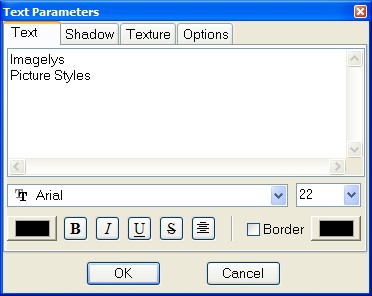
The Text tool places text into an image. You can change the font,
color and size of your text, align it, add a shadow, and fill it
with a texture, interactively.
-
-
-
Text
-
Font Face
-
This control sets the name of the font.
-
-
Font Size
-
This control sets the size of the font.
-
-
Color
-
Color of the text that will be drawn next. Defaults to black.
Selectable from the color picker dialog box that opens when the
current color sample is clickes.
-
-
Font Style
-
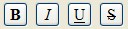
Use this to add special characteristics to characters that use the
font.
 Bold The font is boldfaced.
-
Italic The font is italicized.
-
Underline The font is underlined.
-
Strikeout The font is displayed with a horizontal line through it.
-
Aligns Text

-
You can align the text to the left, to the center, and to the right
in the layer rectangle.
-
-
Border
-
Use this to add a border around the characters.
-
-
Border Color
-
Color of the border that will be drawn next. Selectable from the
color picker dialog box that opens when the current color sample is
clickes.
-
-
-
-
-
-
-
Shadow
-
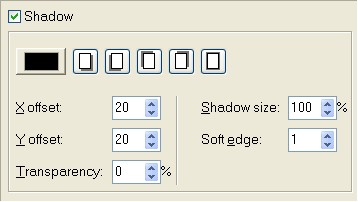
This check box allows you to specify that the text will be drawn
with a shadow.
-
-
Shadow Color
-
Color of the shadow that will be drawn next. Defaults to black.
Selectable from the color picker dialog box that opens when the
current color sample is clickes.
-
-
Shadow Direction
-
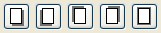
Select the direction for the shadow to fall.
-
-
X and Y offset
-
Set the offset in pixels for the shadow.
-
-
Transparency
-
Set a low value to have a darker shadow and a high value to allow
more of the base image to show through the shadow.
-
-
Shadow size
-
Select the size of the shadow in relation to the size of the font.
For example, a value of 100 creates a shadow the same size as the
font and a value of 200 creates a shadow twice the size of the font.
-
-
Soft edge
-
Set a higher value to blend the shadow more smoothly into the
background.
-
-
-
-
-
Textured
-
This check box allows you to specify that the text will be drawn
filled with a texture.
-
-
Select Source
-
You can select the source of the texture by clicking this button.
Choose between Load texture from file and Paste texture from
clipboard. You can also specify the texture from the ToolPalette.
Applying the selected texture is very easy by double clicking the
desired texture thumbnails in order to apply it to your text.
-
Note
-
If the texture presents a transparent part, she will be merged with
the color text.
-
-
-
-
-
Options
-
Antialiasing
-
Antialiasing will render the text with much smoother edges and
curves. This is achieved by slight blurring and merging of the
edges. This option can radically improve the visual appearance of
the rendered typeface.
-
-
-
-
-
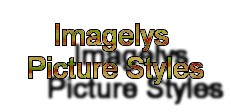
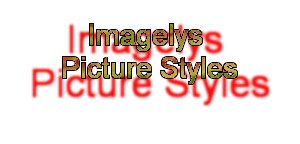
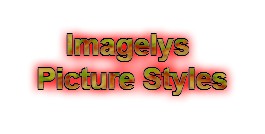
Sample of text render.
-