Multicolor Texture Parameters

- Variation
-
Show Variation dialog box.
-
Click the variation button to create a new texture derived from this
texture.
- Generate
-
Apply the texture to the image.
-
Modify the parameters and repeat generate if necessary.
- Add…
-
Show Add to ToolPalette dialog box.
-
Add this texture, or your custom settings, to the ToolPalette.
- General Tab
-
The General tab contains the texture parameters, the gradient
editor, the color panel and the relief parameters.
-
You can adjust the relief effect by dragging the relief setting
slider bar. Also, this enables you to change the light intensity and
the light direction. The angle is measured in degrees (max 360°).
- Texture
parameters description:
 Smoothness
- You can change the smoothness to take control
over the small structures of the texture.
-
Lower values decrease the small structures - the image gets less
rough.
-
Higher values increase the small structures - the image gets coarser
rougher.
-
Intertwist
-
You can change the value of twisting of the structure (0% means a
very simple twist, 100% means the most complex).
-
Stripes
-
Choose how many stripes you want to generate.
-
Mode
- Use the slider mode setting to control the type
of gradient that will draw the basic texture.
-
You can choose the type of horizontal or vertical or diagonal
stripes you want to generate.
-
-
Gradient Editor

-
Enables you to modify the gradients.
-
To modify the gradient, select the color box and with the pipette,
click in the color panel.
-
To change the transparency, select the color box and drag the color
opacity slide bar.
-
For more detail, see the gradient editor
description.
-
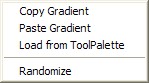
- Options menu

-
You can also, right click on the gradient editor to open a popup
menu, and choose a function.
-
Copy a gradient to the clipboard.
-
Paste a gradient from the clipboard.
-
Load a gradient from the ToolPalette.
-
Randomize the gradient.